How to Add Google Reviews to Your Email Signatures and Marketing Campaigns
Learn how to add Google reviews to your email signature and marketing campaigns. Boost trust and social proof with a dynamic star rating in every email you send.
Posted by
 Miracle Nnamdi
An email signature with your Google reviews is more than just contact information; it’s a powerful, automated credibility signal in every message you send. By turning this often-overlooked digital real estate into a trust-building asset, you can transform routine interactions into opportunities for growth.
Why Add Google Reviews to Your Email Signature?
Imagine your team sends hundreds of emails every day—to prospects, clients, partners, and vendors. Each one is a touchpoint and an opportunity to reinforce your reputation.
- Build Instant Trust: Leverage daily emails to provide verifiable social proof. When prospects see your high star rating before they even ask, it immediately builds confidence and increases reply rates.
- Showcase Customer Feedback: Reduce friction for potential clients by showcasing positive feedback at the first point of contact. It answers the question, "Is this business any good?" without them having to search.
- Passively Generate More Reviews: An embedded link provides a consistent, low-pressure reminder for happy customers to share their own experiences, boosting your review volume over time.
- Enhance Local SEO: While indirect, a steady stream of new reviews signals to Google that your business is active and valued by customers, which can positively influence local search rankings.
Is Adding a Review Link Against Google's Rules?
This is a common and valid concern. Adding a review link to your signature is perfectly acceptable and even encouraged. Google wants to make it easy for customers to leave authentic feedback.
However, you must avoid prohibited practices:
- Never incentivize reviews: Do not offer discounts or payments for a review.
- Do not "gate" reviews: You cannot use a screening process that selectively solicits positive reviews.
- Avoid on-site review stations: Do not have multiple customers leave reviews from a single company-owned device, as this can trigger spam filters.
A simple link or dynamic badge in your email signature is a best practice for encouraging organic feedback and violates none of these rules.
Method 1: How to Manually Add a Google Review Link
This method uses a static, clickable image and a direct review link. It’s a free, reliable approach that works in any email client.
Step 1: Get Your Direct Google Review Link
To get the most new reviews, make the process frictionless. This link sends customers directly to the "leave a review" pop-up.
- Log in to your Google Business Profile Manager.
- On the Home tab, find the card labeled "Get more reviews."
- Click the "Share review form" button. This copies your unique, direct review link.
Step 2: Create a "Review Us" Image
Using a simple graphic is more effective than a plain text link. Create a simple, clickable image that says "Review us on Google" or shows your five-star rating. You can use a free tool like Canva or find pre-made icons. Keep it small and clean.
Step 3: Add the Linked Image to Your Email Client
For Gmail
- Click the Settings gear icon (⚙️) and select "See all settings."
- In the "General" tab, scroll down to the "Signature" section and click "+ Create new."
- In the editor, use the Insert image icon to upload your "Review Us" image.
- Click the uploaded image to highlight it, then click the Link icon in the toolbar.
- Paste your direct Google Review Link into the "Web address" field and click "OK."
- Set your new signature as the default for new emails and replies.
- Scroll to the bottom and click "Save Changes."
For Outlook (Desktop App)
- Open a new email, then click "Signature" > "Signatures..."
- Click "New" and name your signature.
- In the editor, use the image icon to insert your "Review Us" image.
- Click the image, then click the Hyperlink icon.
- Paste your direct Google Review Link into the "Address" field and click "OK."
- Assign your new signature to "New messages" and "Replies/forwards."
- Click "OK" to save.
For Apple Mail
- Open Mail, then go to "Mail" > "Settings" (or "Preferences") from the menu bar.
- Click the "Signatures" tab.
- Select the email account, click the + icon to create a new signature, and give it a name.
- Drag and drop your "Review Us" image into the signature editor box.
- Select the image, then go to "Edit" > "Add Link..." from the menu bar.
- Paste your Google Review Link and click "OK."
- Use the "Choose Signature" dropdown to set your new signature as the default.
Method 2: How to Embed a Dynamic Review Widget
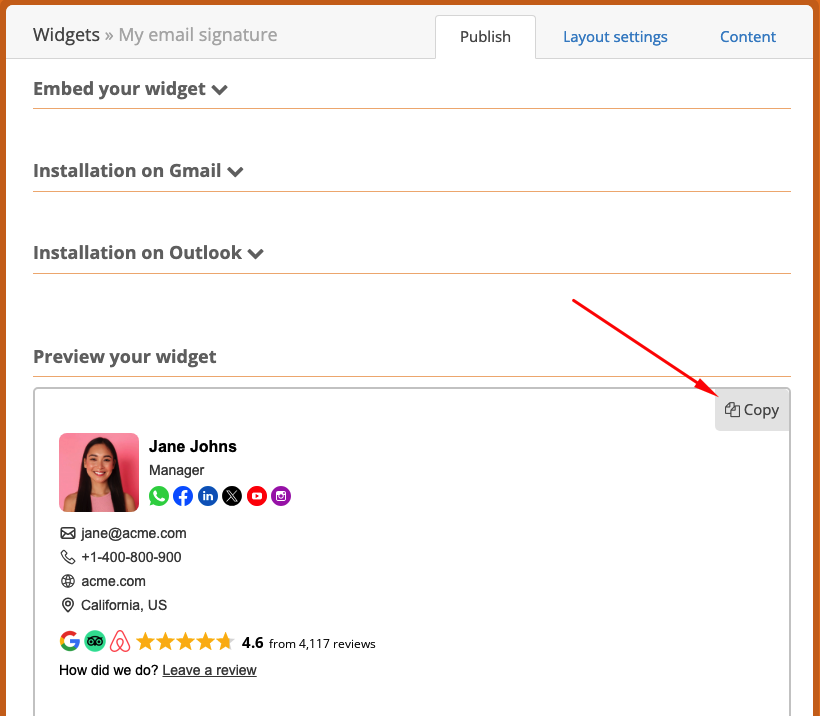
For maximum impact, a dynamic widget provides live-updating social proof. It displays your current star rating and review count, which builds more trust than a static image.
This method requires a third-party tool.
- Select a Widget Provider: Choose a service that offers an email signature widget.
- Connect Your Google Business Profile: Link your profile to the service, usually by searching for your business name.
- Customize the Widget: Select a small, email-friendly layout (often called a "badge"). Adjust colors and fonts to match your brand.
- Generate and Copy the Code: The tool will provide a piece of HTML code or a "Copy to Clipboard" button.
- Paste into Your Email Client: Access your signature editor using the steps from Method 1. Instead of inserting an image, paste the copied HTML widget code directly into the editor. Most modern email clients will automatically render the code to display the badge.
- Save and Test: Save the signature and send a test email to yourself. Verify that the widget appears correctly on both desktop and mobile devices.

Top 3 Tools for Adding Google Reviews to Signatures
While you can add a link manually, specialized tools automate the process and provide dynamic, always-updated badges that are more credible.
| Tool Type | Key Features | Best For |
|---|---|---|
| Simple Signature Generators | Focuses exclusively on creating professional email signatures. Offers templates and easy integration for review badges. | Individuals or small teams who need a clean, professional signature quickly without complex features. |
| Dedicated Review Widgets | Provides a wide range of customizable widgets for websites, email, and social media. Often includes schema markup and review filtering options. | Businesses that want to display social proof across multiple platforms, not just in their email signature. |
| All-in-One Reputation Platforms | Comprehensive software that includes review generation campaigns, response management, and multi-platform monitoring in addition to widgets. | Companies looking to manage their entire online reputation actively, with email signatures being one part of a larger strategy. |
Best Practices for Your Google Review Signature
Simply adding a link isn't enough. How you present it determines its effectiveness.
- Keep It Simple: A great professional signature is concise. Include your name, title, company, and phone number. The review element should be a single, powerful addition, not part of a cluttered footer with multiple icons and quotes.
- Strategic Placement: Position the review link or widget below your core contact information. It should support your identity, not overpower it.
- Mobile-First Design: Test your signature on a phone. Ensure the image or widget is small enough to load quickly and display correctly without forcing horizontal scrolling.
- Clear Call-to-Action (CTA): If using a static image, make the text explicit. "Read our reviews on Google" is a soft CTA for prospects, while "Leave us a review" is a direct CTA for existing clients.
Examples of Effective Signatures
- Good (Minimalist): A simple text link under your name saying, "See our 4.9 ★★★★★ rating on Google." It's subtle, professional, and universally compatible.
- Better (Static Image): A small, branded graphic showing five stars with the text "150+ Happy Customers" linked to your review page. It's visual and provides strong social proof.
- Best (Dynamic Widget): A professionally generated badge that automatically displays "4.9 stars | 152 Reviews" and updates in real-time. This provides the most credible and trustworthy signal.
Frequently Asked Questions (FAQ)
What's better: a static image or a dynamic widget?
A dynamic widget is superior because it provides live, verifiable social proof with your current rating and review count. This is more convincing than a static claim. However, a simple static image is a fantastic, free starting point that is much more effective than nothing.
Can I get my reviews flagged as spam for using a signature link?
No. Providing a direct link in your signature is a recommended practice. Google's spam filters target manipulative behaviors like incentivizing reviews or getting many reviews from the same IP address, none of which apply here.
Which review platform should I link to?
For most businesses focused on local SEO, Google is the priority. Google reviews directly influence your visibility in Google Search and Maps, where most customers begin their search.
Does a review widget work on mobile email apps?
Yes, most modern signature generators and HTML-based widgets are designed to be responsive and display correctly on mobile devices. However, some older email clients may not render them perfectly, which is why a simple linked image remains a very reliable option.
Can I use this strategy in my email newsletters?
Absolutely. Including a "Leave us a review" button in marketing newsletters is a great way to prompt feedback from a broad, engaged audience. Just ensure your request is neutral and does not offer anything in exchange for the review.
Next Step: Explore embed-review.com
If this guide was useful, visit embed-review.com to learn how their product can help:
- What embed-review.com offers: Embed Review provides a service for businesses to showcase their Google Reviews on their website using a beautiful, embeddable widget. The tool is set up in minutes without coding by pasting a code snippet, automatically updates reviews, and offers customization options to match a brand's design. It is designed for various local businesses to build trust and increase conversions.
- Website: https://www.embed-review.com
