The Ultimate Guide to Getting More Google Reviews for Your Local Business
Want to get more Google reviews for your local business? Our ultimate guide covers creating review links, asking customers, and showcasing feedback to boost your ratings.
Posted by
 Miracle Nnamdi
Before you begin building a system to generate Google reviews, ensure you have the foundational elements in place. This preparation will make the following steps smoother and more effective.
Prerequisites & Tools Needed
- Prerequisites:
- A fully claimed and optimized Google Business Profile (GBP). If you're just starting, see our complete guide.
.[Link to: How to Set Up Your Google Business Profile to Maximize Customer Reviews] - Access to your business website's backend (e.g., knowing your
or Wix/Squarespace credentials).WordPress Login URL - A list of recent, satisfied customers you can contact, typically exported from your CRM, point-of-sale system, or accounting software.
- Tools:
- Essential: Your Google Business Profile dashboard.
- Recommended:
- An email marketing service (e.g., Mailchimp, Constant Contact).
- A website widget solution, such as an
Elfsight
.Google Reviews Widget - A free online QR code generator.
- Outcome:
- You will have a repeatable, multi-channel system to consistently generate Google reviews, improve your online reputation, outperform local competitors, and increase Google ratings for your business.
Step 1: Create Your Unique Google Review Link
To get more Google reviews for your local business, you must first create and share a direct link that takes customers straight to the review form, removing any friction from the process. This simple action is the foundation of any successful Google review strategy.
Find Your Google Place ID and Generate the Link
The most direct path for your customer is a link that opens the review submission box automatically. Google makes this incredibly easy to find.
- Navigate to your Google Business Profile dashboard. (The easiest way is to search for "my business" on Google while logged into your management account).
- On the Home tab, find the "Get more reviews" card.
- Click "Share review form" to copy your unique, shortened review link.
- This link is the most critical asset for your campaign. Save it somewhere your entire team can access it easily.
Shorten and Brand Your Link (Optional but Recommended)
A generic Google link works, but a custom link inspires more confidence and is easier to remember.
- Use a URL shortener like Bitly to create a custom, memorable link (e.g.,
).bit.ly/Review-YourBiz - If you use WordPress, a plugin like Pretty Links can create a branded redirect from your own domain (e.g.,
).yourbusiness.com/review - A branded link looks more professional and trustworthy when shared in emails, on print materials, and in SMS messages, increasing the likelihood of a click.
Step 2: Make It Insanely Easy for Customers to Leave a Review
The core principle of getting more reviews is convenience. The fewer clicks and less thought required, the higher your success rate will be. Integrate your review link into every relevant customer touchpoint.
Add a Review Link to Your Website
Your website is your digital storefront and a prime location to ask for feedback.
- Place a clear "Leave a Review on Google" button or link in your website's footer, on your contact page, and especially on post-purchase "Thank You" pages where customer satisfaction is highest.
- If you're on a platform like
, you can easily add this link via the menu editor or a widget area. Users of site builders likeWordPress
orWix
can use their drag-and-drop editors to add a prominent button in seconds.Squarespace
Create and Use a Review QR Code
Bridge the gap between your physical and digital presence with a QR code.
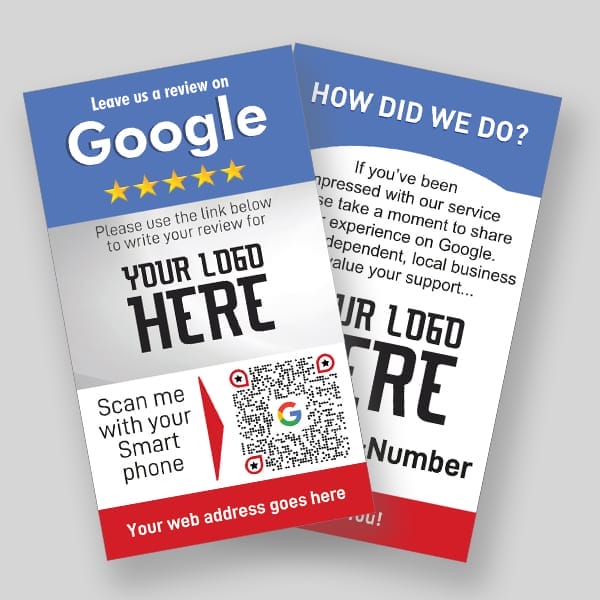
- Use a free online QR code generator to turn your review link into a scannable code.
- Place this QR code on physical materials where customers will see it at peak satisfaction:
- For restaurants/cafes: On table tents or the bottom of receipts.
- For service businesses: On business cards, invoices, or a magnet left on a client's appliance.
- For retailers: On in-store signage near the checkout or on product packaging inserts.

Add a Link to Your Email Signature
This is a low-effort, high-impact tactic that works passively for you and your entire team.
- In your email client settings (Gmail, Outlook, etc.), add a simple line to your signature like: "Happy with our service? Share your experience on Google!" and hyperlink it with your review link.
- This turns every email you send into a passive opportunity to collect Google reviews.
Step 3: Actively (and Politely) Ask for Reviews
A proactive approach is essential. Most happy customers are willing to leave a review but simply forget or don't think to do it. Your job is to remind them at the right time and in the right way. For a deeper dive into phrasing and templates, check out our guide on
[Link to: Effective Strategies to Ask Customers for Google Reviews]Identify the "Golden Moment" to Ask
The "Golden Moment" is the point of maximum customer satisfaction. According to the Peak-End Rule, a psychological principle, people primarily remember an experience based on its most intense point (the peak) and its end.
Asking for a review immediately after this positive peak dramatically increases your chances of success.
- Examples of Golden Moments:
- For a realtor: The day you hand over the keys to a new home.
- For a mechanic: When the customer picks up their perfectly repaired car.
- For a B2B consultant: After delivering a successful project report that exceeds expectations.
- For an e-commerce store: A few days after a product has been delivered, giving the customer time to enjoy it.
Leverage Email and SMS Campaigns
Automate your requests to ensure consistency and scalability.
- Send personalized follow-up emails to customers asking for customer feedback on Google. Personalization can be as simple as using their first name and mentioning the service they received.
- Use SMS for a more immediate, high-open-rate request. Always ensure you have explicit permission to text your customers for marketing or feedback purposes.
- Comparison of Review Request Methods:
| Method | Best For | Pros | Cons |
|---|---|---|---|
| Service-based businesses, e-commerce | Can be personalized, automated, provides space for context | Lower open rates, can be lost in a busy inbox | |
| SMS | Quick transactions, appointments | Extremely high open rates, immediate | Must be concise (character limits), requires consent, can feel intrusive if overused |
| QR Code | Brick-and-mortar, events | Contactless, low-friction for in-person customers | Requires physical presence, customer must be comfortable using QR codes |
| In-Person | High-touch services, retail | Highly personal, highest success rate when a customer is happy | Not scalable, relies on staff remembering to ask at the right moment |
Train Your Team to Be Part of the Process
Your frontline employees are your best asset for identifying happy customers.
- Empower your staff to listen for positive comments and ask for a review on the spot.
- Provide them with a simple, non-pushy script like, "I'm so glad you're happy with the result! If you have a moment, we'd be grateful for a review on Google. It really helps others find us."
- Equip them with business cards featuring your review QR code to make it effortless for the customer.
Step 4: Showcase Your Best Reviews to Build Social Proof
Displaying existing positive reviews is one of the best ways to encourage new ones. It shows customers that their feedback is valued and seen, building trust that makes them more willing to contribute.
This is where local SEO reviews truly shine, providing signals to both potential customers and search engines.
Embed a Google Reviews Widget on Your Website
The most efficient way to showcase your reviews is with an automated tool.
A Google Reviews Widget automatically pulls your latest reviews from Google and displays them in a professional, engaging format like a grid, list, or carousel on your site. This provides powerful social proof that builds immediate trust with new website visitors.
It also keeps your website content fresh with user-generated content, a positive signal for SEO. Solutions like the
Elfsightblogging platformWordPressWixSquarespaceUse Reviews to Enhance Your Website's Credibility
Don't just relegate reviews to a single testimonials page. Integrate them strategically.
- Place a feed of your best reviews directly on your homepage, service pages, or product pages to support key claims and reduce purchase anxiety.
- You can amplify trust by combining your reviews with other elements, like an
to display user-generated photos or aInstagram Feed Instashow
to feature curated customer testimonials.Slider Widget - For service pages, an
can answer common questions and be paired with relevant 5-star reviews that reinforce your expertise.Accordion FAQ Widget
Share Positive Reviews on Social Media
Amplify your best feedback by sharing it with your followers.
- Create simple, branded graphics highlighting a fantastic customer quote using a tool like Canva.
- Tag the customer if possible and appropriate, turning them into a brand advocate.
- In your post, always include a link to your GBP page to encourage others to read more reviews or leave their own.
Step 5: Engage with Every Review You Receive
Responding to reviews shows that you are an engaged business owner who values customer feedback. Google has explicitly stated that responding to reviews can improve your local SEO. It demonstrates to both Google and your customers that you care.
Respond Promptly to Positive and Negative Feedback
A balanced and timely response strategy is crucial.
- For positive reviews: Thank the customer by name and reference a specific part of their review. For example: "Thanks, John! We're thrilled you enjoyed the new patio seating. We look forward to seeing you again soon." This shows you read it carefully.
- For negative reviews: Address them professionally and empathetically within 24 hours. Apologize for their poor experience and offer to take the conversation offline to resolve the issue. Never get into a public argument.
- For comprehensive guidance, see our dedicated articles:
and[Link to: Responding to Google Reviews: A Guide for Small Business Owners]
.[Link to: How to Deal with Negative Google Reviews Positively]
Step 6: Analyze and Refine Your Review Strategy
A great review generation system is not static. Use data to understand what's working and identify opportunities for improvement.
Track Your Review Link Clicks
You can't improve what you don't measure.
- Use a link shortener that provides analytics (like Bitly) or track clicks in
using UTM parameters.Google Analytics - Create distinct links for each channel (e.g., one for your email signature, one for your QR code) to see which one performs best. This reveals where to focus your efforts.
A/B Split Test Your Requests
Small changes in your request wording or timing can have a big impact.
- If you use an email marketing platform, test different subject lines (e.g., "A quick question" vs. "How did we do?").
- You can also test timing, sending a request one day after service vs. three days after.
- Experts at sites like
often provide detailed tutorials on how to conduct A/B split testing onWPBeginner
sites to optimize these kinds of user actions.WordPress
Monitor Your Rating and Velocity
Pay attention to both the quality and quantity of your reviews.
- Keep an eye on your average star rating and the velocity (the rate at which you get new reviews).
- A steady stream of recent reviews is a powerful trust signal for both new customers and Google's local ranking algorithm. A great website, supported by reliable
, ensures that when customers click your link, the experience is fast and seamless, encouraging them to complete the review.Managed WordPress Hosting
Frequently Asked Questions (FAQ)
Is it against Google's policy to ask for reviews?
No, it is not against Google's policy to ask customers for reviews. In fact, Google encourages it. However, it is strictly against policy to offer incentives (like discounts or gift cards) in exchange for reviews or to selectively solicit positive reviews from only happy customers ("review gating").
How many Google reviews do I need for my local business?
There is no magic number. The goal is to have a steady, ongoing stream of recent, authentic reviews. A good benchmark is to have more reviews and a higher overall rating than your direct local competitors. Consistency is more important than a one-time push, as it provides a continuous stream of fresh customer feedback Google can use to evaluate your business's relevance and trustworthiness.
How can I display my Google reviews on my WordPress website?
The easiest method is to use a dedicated plugin or a third-party widget tool. Solutions like the
ElfsightGoogle Reviews WidgetFTP clientsWhat's the best way to handle a negative review?
The best approach is to respond quickly, publicly, and professionally. Acknowledge the customer's issue, apologize for their negative experience, and offer a clear way to resolve the problem offline (e.g., "Please call us at... or email support@... so we can make this right."). This shows other potential customers that you take all feedback seriously and are committed to customer satisfaction.
Why are my new Google reviews not showing up?
There can be a few reasons for a delay. Most often, it's due to Google's automated spam filters, which can delay publication for 24-48 hours. If a review from a legitimate customer doesn't appear after a few days, it was likely removed by Google's algorithm for a policy violation. Unfortunately, there is little you can do to restore a review that Google's system has flagged and removed.
Building a Lasting Reputation, One Review at a Time
Getting more Google reviews isn’t a one-time campaign; it’s a fundamental part of modern local business operations. By creating a frictionless process, asking at the right moment, and engaging with all feedback, you build a powerful engine for social proof. But collecting reviews is only half the battle.
To truly leverage them, you need to ensure potential customers see them right when they’re making a decision. This is where you close the loop. Now that you have a system for generating great feedback, the logical next step is to showcase it on your most important marketing asset: your website. A powerful, no-code tool like the
ElfsightGoogle Reviews WidgetNext Step: Explore embed-review.com
If this guide was useful, visit embed-review.com to learn how their product can help:
- What embed-review.com offers: Embed Review provides a service for businesses to showcase their Google Reviews on their website using a beautiful, embeddable widget. The tool is set up in minutes without coding by pasting a code snippet, automatically updates reviews, and offers customization options to match a brand's design. It is designed for various local businesses to build trust and increase conversions.
- Website: https://www.embed-review.com
